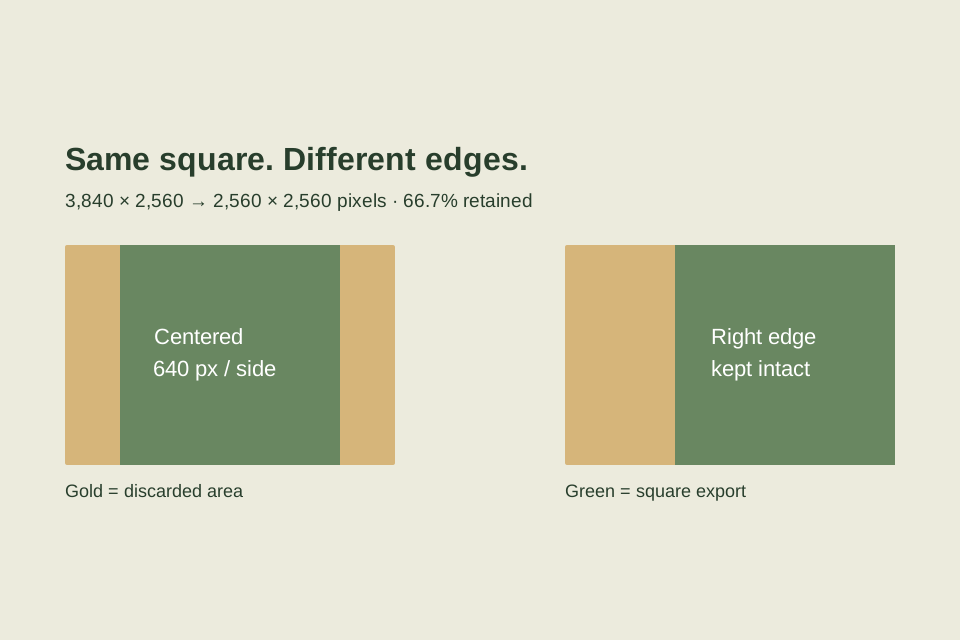
A square frame asks more of a landscape photograph than a slightly narrower rectangle. For our 3,840 × 2,560 pixel image, a square crop keeps 2,560 × 2,560 pixels: exactly two thirds of the original area. The other third has to come from the sides. Moving the crop changes which side you sacrifice; it does not recover those pixels within the square.
We exported both a centered square and a right-aligned square from the same mountain photograph. The files have the same dimensions, but the balance between the ridge, sky and foreground trees changes noticeably. This walkthrough includes the source, actual tool captures and display captures of both verified exports so you can reproduce that choice.
What was checked: actual browser operations and downloads on October 19, 2026; independent file dimensions, crop coordinates, pixel comparisons and print-size arithmetic. The small comparison images are browser captures of the exported files, displayed at 480 × 480 pixels. No physical printing was performed. These are composition checks, not proof of printed sharpness, color or frame fit.
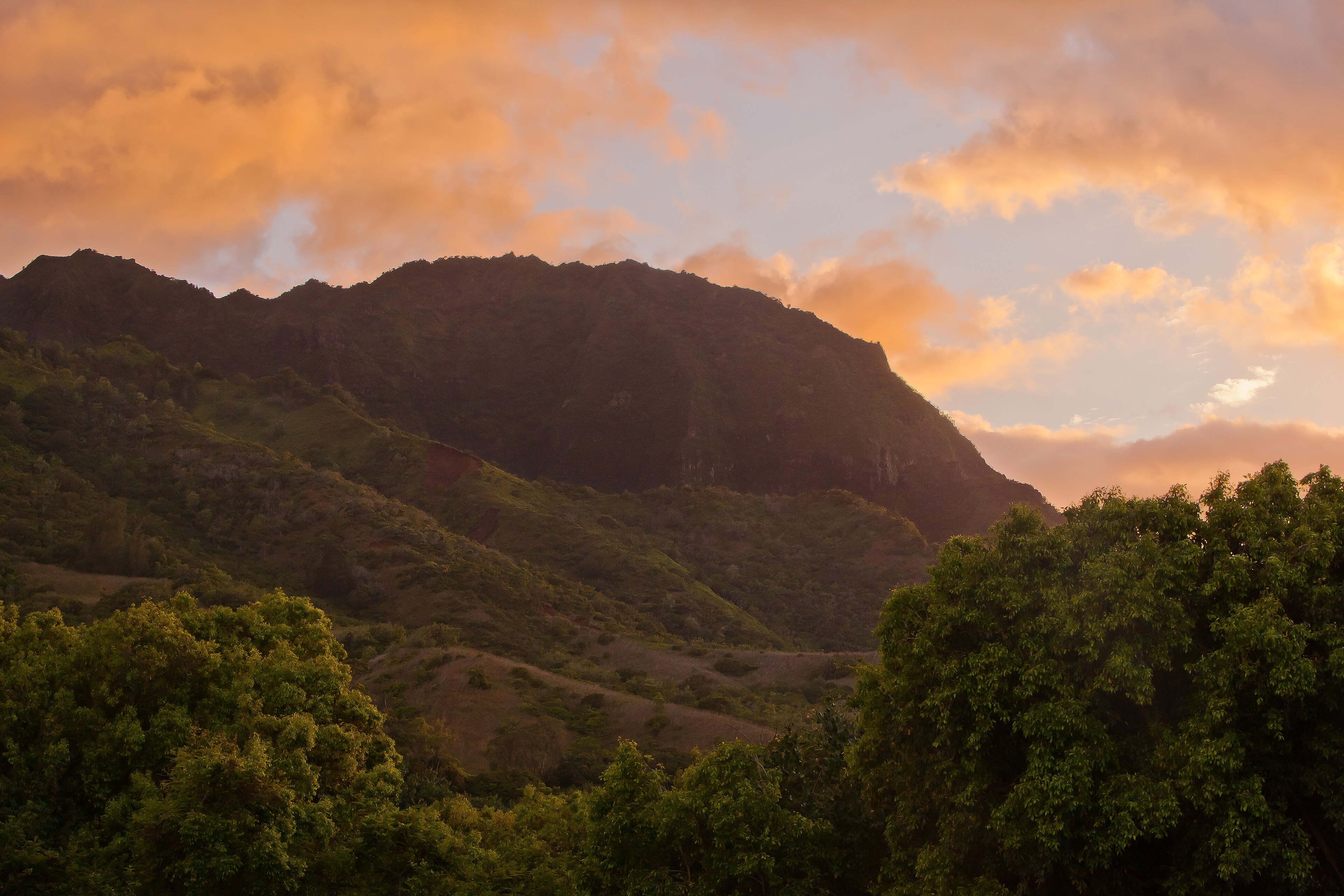
Start with the original landscape file
The photograph is Rocky Landscape by Jason Drumm, showing a dark mountain ridge, orange clouds and foreground trees. We use the 3,840 × 2,560 version listed on its Wikimedia Commons file page. That page identifies this particular photograph as CC0; the CC0 dedication permits reuse and modification. Swetter made the crops and screenshots, not the photograph.
Download the source JPEG · 3,840 × 2,560 px · about 1.8 MiB
This local copy matches the file used in our checks. The source file page also offers a larger original; using that version would give different pixel counts.
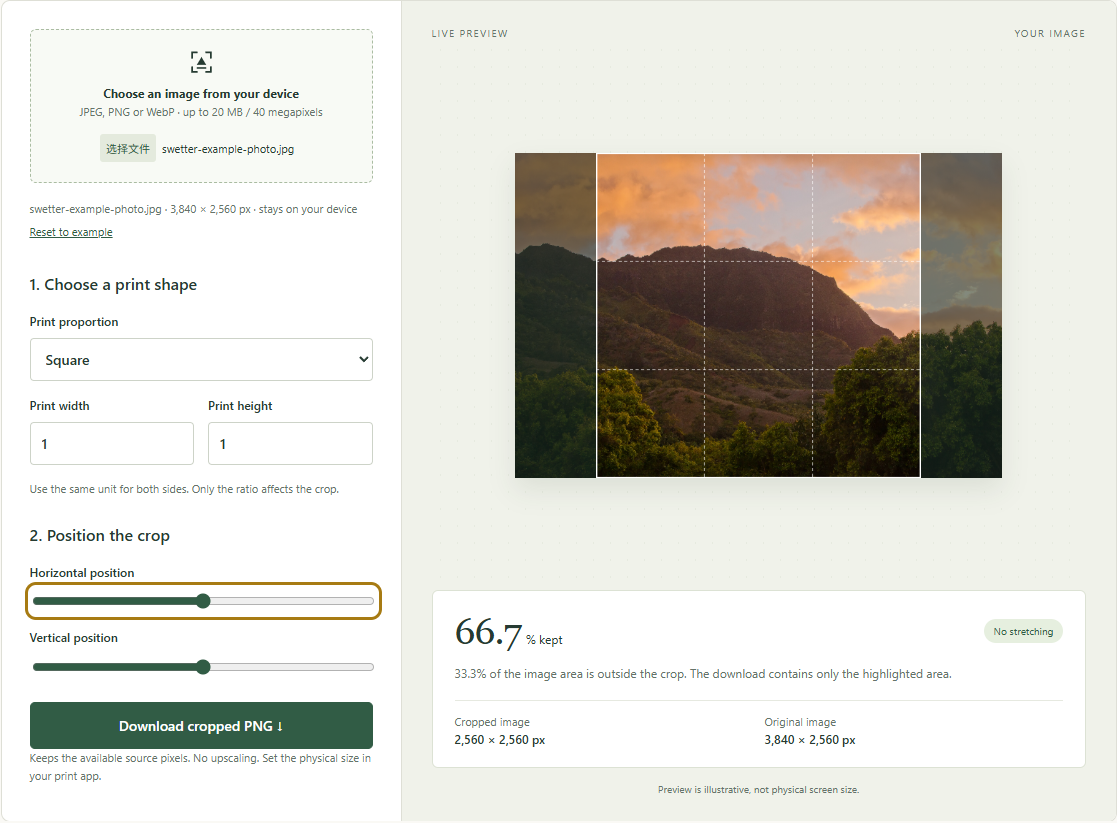
Open Photo crop preview, choose the JPEG and confirm that the tool reports 3,840 × 2,560 px. Select Square in Print proportion. The width and height fields become 1 and 1; these values describe the ratio, not a one-inch print.
Keep Horizontal position in the middle and Vertical position in the middle for the first run. The tool reports 66.7% kept and 2,560 × 2,560 px. The percentage is rounded: the exact retained fraction is 2/3.
Read the sides that the square removes
The source has 9,830,400 pixels. The square has 6,553,600. Its side length is limited by the source's 2,560 pixel height, so there are 1,280 pixels of width left outside the square: 3,840 − 2,560.
For the centered position, that becomes 640 pixels discarded at each side. The square begins at source coordinate x = 640, y = 0. It keeps the full height and ends at the x = 3,200 boundary.
| Position (slider) | Source x start | Left removed | Right removed |
|---|---|---|---|
| Centered (50) | 640 px | 640 px | 640 px |
| Right (100) | 1,280 px | 1,280 px | 0 px |
The slider spreads the available horizontal movement across its 0–100 range. Here, x = 1,280 × slider value ÷ 100. At 50 it is 640; at 100 it is 1,280. It is not a percentage of the source width that must be removed.
Compare the ridge and the right-hand trees
Move Horizontal position all the way to the right. The square reaches the original right edge, keeping more of the right-hand foreground trees and the open sky above them. More of the ridge's left side disappears. The result still says 66.7% kept, because the area has not changed.
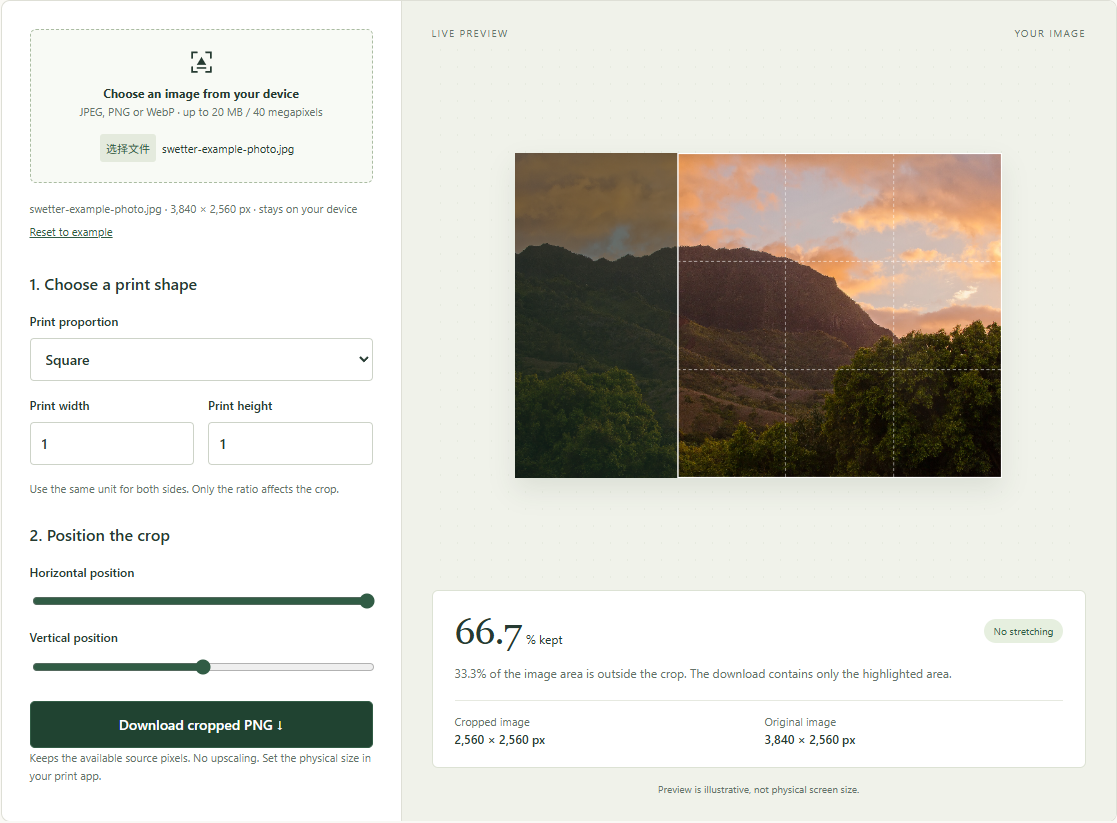
Select Download cropped PNG for each position before changing the setting. These are the resulting files displayed at the same size:
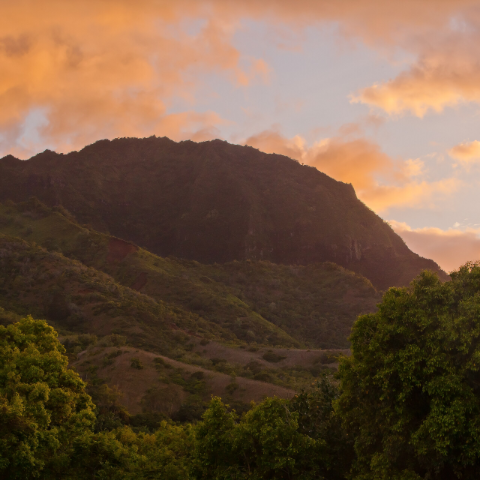
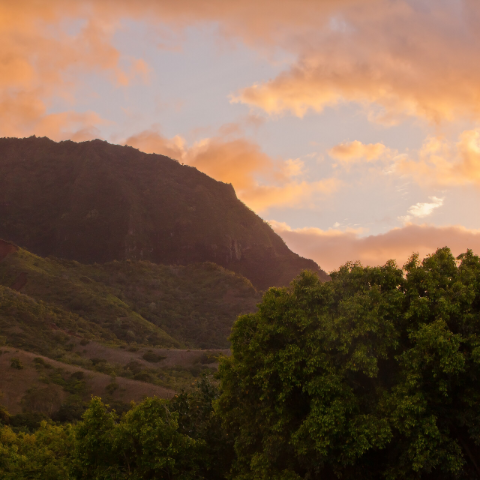
Neither position preserves the entire ridge. Pick according to what matters in your picture: in this example, keeping more of the ridge favors the centered version, while giving the right-hand trees more space favors the shifted version. The retained percentage cannot make that composition decision.
The two exported squares overlap across 1,920 × 2,560 pixels of the original. We checked that this shared region is pixel-identical between the PNG files. Changing the position selects a different region; it does not add detail to the part that both retain.
Why moving the vertical slider changes nothing here
The square already uses every row of the source: 2,560 out of 2,560. Available vertical movement is therefore zero. Moving the vertical slider to its endpoint cannot reveal extra sky or lower trees; y stays at 0. We checked that endpoint as well.
Horizontal movement can still change the amount of sky visible because the ridge has a different shape in different columns. That is a change in composition within the selected columns, not additional image rows.
If you need the entire landscape inside a square print, use a fit-with-borders workflow instead of a crop. As a calculated example, fitting this 3:2 image inside an 8 × 8 inch square uses 8 × 5.33 inches for the image, leaving about 1.33 inches above and below when centered. A square with no borders and the entire landscape cannot both be obtained from this file without changing the image's proportions or adding content. Swetter's crop tool does neither.
Do not re-crop an older export when you need its missing edge
Our earlier 10 × 8 crop walkthrough produced a centered 3,200 × 2,560 export. That file already discarded 320 pixels from each side of the original. If you use it as the input for a right-aligned square, the tool cannot reach the original photograph's rightmost 320 pixels.
The coordinate calculation makes the difference concrete. A right square from the older export starts 640 pixels into that export. Add its original 320 pixel offset and the square covers x = 960 to 3,520 in the original image. Our direct right-aligned square covers x = 1,280 to 3,840. Both are 2,560 pixels wide, but they are different compositions.
This is a calculated re-crop comparison, not a third screenshot or export. Return to the original JPEG when changing the frame shape if you want access to all the original edges. Keep each crop as a separate file with a descriptive name.
Check the file, then choose the physical print size
Both downloaded PNGs were independently inspected as 2,560 × 2,560 pixels. The crop boundaries also matched the intended regions of the source. Their dimensions are equal even though their compressed file sizes differ; file size alone does not tell you the retained area or printing density.
| Intended square print | Calculation | Effective density |
|---|---|---|
| 6 × 6 inches | 2,560 ÷ 6 | About 427 PPI |
| 8 × 8 inches | 2,560 ÷ 8 | 320 PPI |
| 10 × 10 inches | 2,560 ÷ 10 | 256 PPI |
At a chosen 300 PPI target, the arithmetic permits a side of 2,560 ÷ 300 = 8.53 inches before going below that density. That is a pixel calculation, not a promise of sharpness. Check focus, noise, intended viewing distance and your print provider's requirements separately. Use the Print size checker with the cropped file to compare your own intended size.
Download crop positions and print-size calculations (CSV)
Use the source JPEG above and the two slider settings to generate your own 2,560 × 2,560 PNGs through the tool's Download cropped PNG button. Our centered download was about 10.7 MiB; the right-aligned download was about 10.3 MiB.
The article's linked comparison images are 480 × 480 display captures, not the full-resolution print files. Use your tool export for printing.
Set the intended physical size in your print application or ordering service, inspect its final preview for another crop and check the actual frame opening. Make one proof before ordering a batch. These checks establish what the software produced; the paper result remains to be tested with your own printer or service.
.jpg)