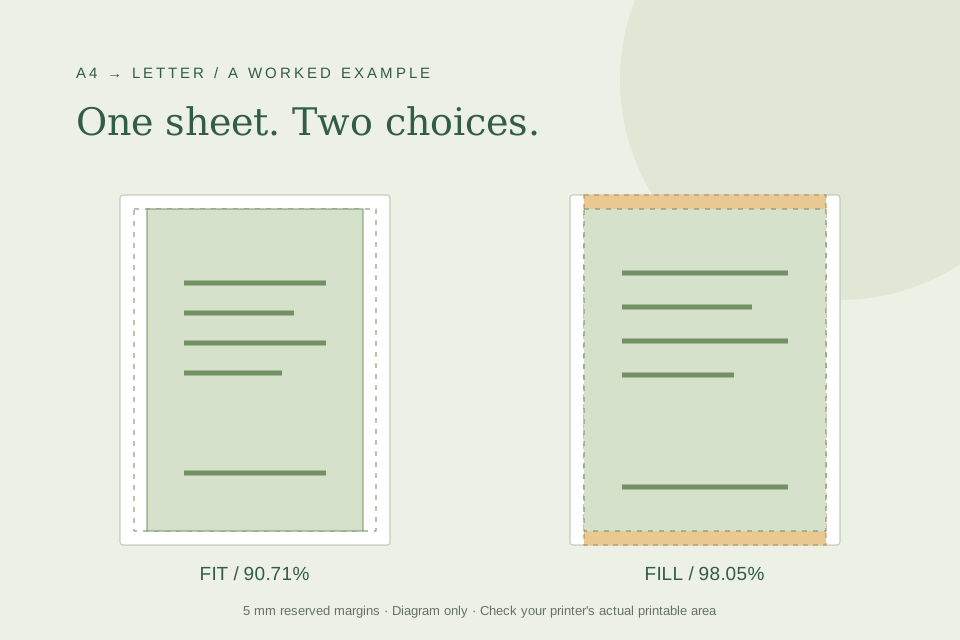
You have an A4 handout and a printer loaded with US Letter. Two percentages can both look reasonable: 90.71% and 98.05%. With a 5 mm reserved margin, the first preserves the whole page; the second fills the width and cuts off content vertically. We ran both settings in Swetter to make that difference visible.
What we checked: the screenshots are actual desktop browser runs of the paper scaling calculator on October 12, 2026. We verified the calculations below. The page drawings are geometric previews, not a loaded document or a physical print. The calculator does not read your printer's actual printable area.
Enter a reproducible paper setup
Open the Paper scaling calculator. Select A4 as the original paper and US Letter as the destination. Use portrait dimensions, enter 5 mm for the minimum margin and leave Rotate the source page 90° unchecked.
| Input | Dimensions |
|---|---|
| Source A4 page | 210 × 297 mm |
| Destination Letter sheet | 215.9 × 279.4 mm |
| Reserved margin | 5 mm on each edge |
| Available area in this model | 205.9 × 269.4 mm |
The 5 mm figure is our chosen planning value. It is not a measurement of your hardware. A printer with a larger or asymmetric non-printable area may need a different allowance. Consult its documentation before using a calculated percentage for an edge-sensitive document.
Fit: the height sets the scale
Select Fit — keep the whole page. The tool reports 90.71%, a scaled page of approximately 190.48 × 269.4 mm, and “Whole page fits.”
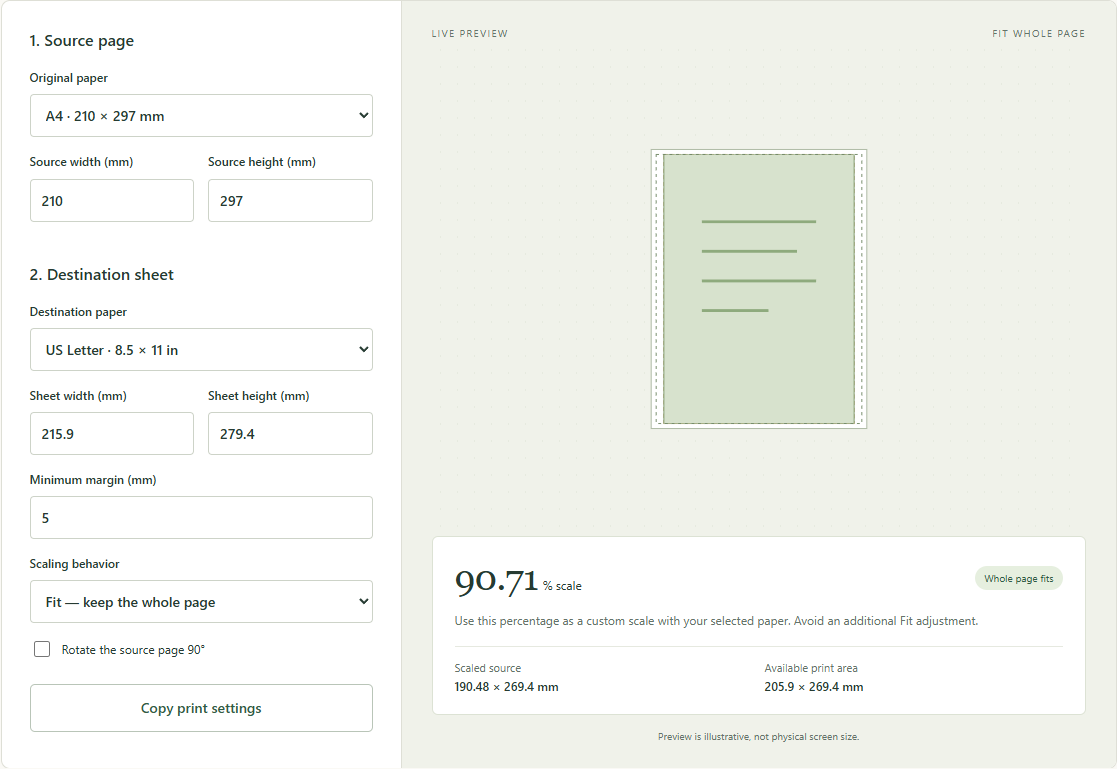
Fit takes the smaller of the width and height ratios: min(205.9 ÷ 210, 269.4 ÷ 297) = 0.9070707…. Height is the limiting direction. The page uses all 269.4 mm of available height, while the width leaves space at the sides.
If centered as in the preview, the source-page edge is about 12.71 mm from each physical side edge: (215.9 − 190.4848…) ÷ 2. The top and bottom page-edge spaces are 5 mm. These distances describe the scaled source page; a document's own internal whitespace adds further space around its text.
Fill: the width sets the scale, but content overflows
Keep every input unchanged and select Fill — crop any overflow. The tool reports 98.05% and warns that some content is cropped. The scaled source becomes approximately 205.9 × 291.2 mm, which is taller than the 269.4 mm available area.
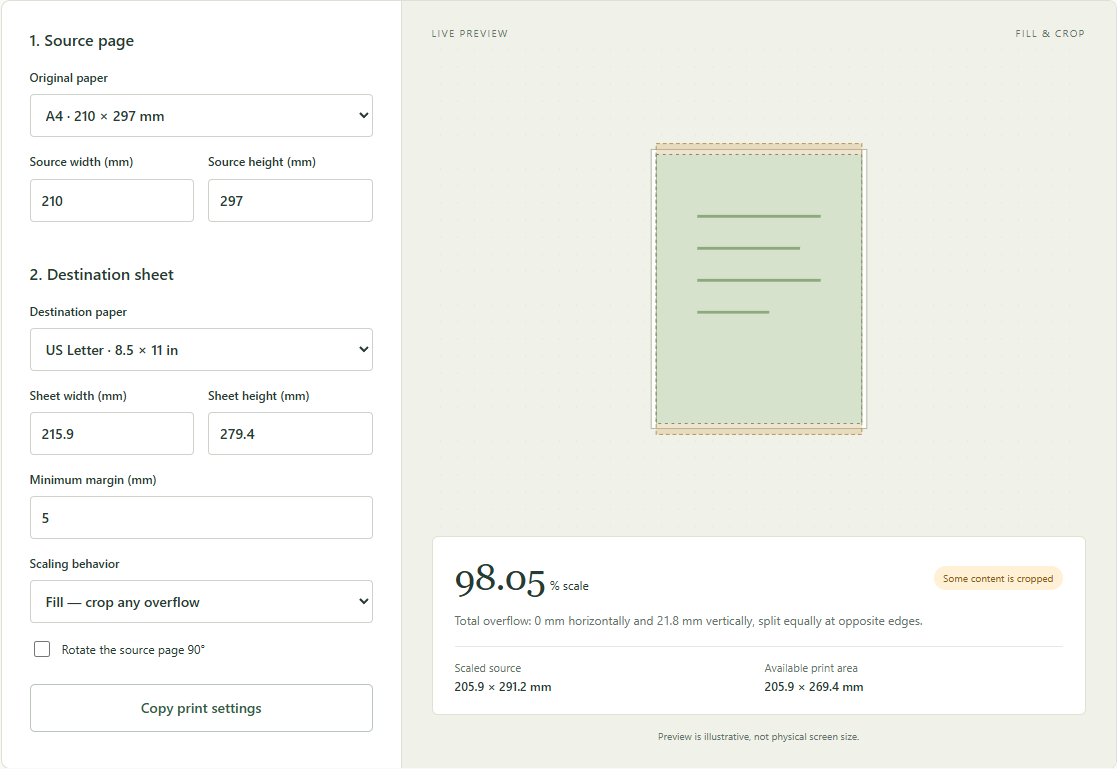
Fill takes the larger ratio: max(205.9 ÷ 210, 269.4 ÷ 297) = 0.980476…. Its scaled height exceeds the available height by about 21.8 mm, or 10.9 mm at each end when centered. Those are millimeters on the scaled output, not the original document. In source-page coordinates, the loss is about 11.12 mm at each end.
| Result with 5 mm reserved margins | Fit | Fill |
|---|---|---|
| Displayed scale | 90.71% | 98.05% |
| Scaled source width | 190.48 mm | 205.90 mm |
| Scaled source height | 269.40 mm | 291.20 mm |
| Total vertical overflow | 0 mm | 21.80 mm |
| A source 100 mm line would become | About 90.71 mm | About 98.05 mm |
A source with empty margins might lose only blank space, but a page number or footer near the edge might disappear. The calculator cannot tell which of those is true because it does not inspect your document.
Choose according to the document's purpose
For a reading copy of a handout, Fit is usually the useful starting point: it keeps the entire modeled source page. For artwork where cropping is deliberate, compare Fill with the actual document preview and inspect both ends.
For a scale-sensitive pattern, label or ruler, neither percentage preserves the original dimensions. Use an appropriately sized sheet or a document-author-approved tiling workflow. A result that says “Whole page fits” is a geometry statement; it does not mean a 100 mm measurement remains 100 mm.
The often-quoted 94.07% A4-to-Letter fit uses a different assumption: zero reserved margin, so the limiting ratio is 279.4 ÷ 297. It does not establish that a printer can use the entire sheet. Our 90.71% result includes the explicitly reserved 5 mm edges.
Transfer the setting once, then verify on paper
The tool's Copy print settings button records the selected percentage, destination dimensions, margin, mode and rotation. In a print application, use the intended destination paper and apply the custom percentage once. Do not apply an additional automatic Fit operation to an already resized document without inspecting the result.
In Acrobat, Fit is based on the printable area reported for the selected printer and paper; Custom Scale uses a percentage you specify. Its Fit result therefore need not equal Swetter's manually chosen 5 mm model. See Adobe's page sizing documentation.
Our displayed percentages are rounded to two decimal places. Inspect the application's preview after entering them, especially if content lies close to an edge. Print one page before the batch, measure a known reference and check the footer. Use the 100 mm reference walkthrough to separate scale problems from placement problems, then verify the actual document with the same setup.